How many hours do you waste recreating the same design elements every single week—when you could learn one keyboard shortcut and get 20 minutes back today?
If you’re designing between school drop-off and your first meeting, every minute counts. This post is built for you—not for graphic designers with six free hours.
What’s Inside This Guide:
- The 5 shortcuts that save the most time (and which one to learn first if you have only 10 minutes)
- How to master copy-paste formatting so you never manually adjust colors again
- The “duplicate slide” hack every template-heavy parent needs to know
- Why keyboard shortcuts beat templates when you’re working under pressure
- The myth about Canva “shortcuts” that’s probably wasting your time right now
- Your instant-action checklist: 15 shortcuts ranked by time saved
The Shortcuts That Actually Matter (Skip the Noise)
Instead of throwing 50 shortcuts at you and calling it a day, let’s be smarter about this.
Most Canva shortcut posts are written for designers who sit at a desk for eight hours. That’s not your life. You need shortcuts ranked by how much time they actually save—not by how impressive they sound.
Here are the five shortcuts that compound over time:
- Ctrl+D / Cmd+D — Duplicate an element instantly (saves 45+ seconds per use)
- Ctrl+Z / Cmd+Z — Undo anything, fast (saves you from starting over)
- Ctrl+A / Cmd+A — Select everything on a slide at once (saves 30 seconds of clicking)
- Ctrl+G / Cmd+G — Group elements so they move together (saves 2+ minutes per layout)
- Ctrl+Shift+H / Cmd+Shift+H — Center elements horizontally (saves the frustration of manual alignment)
The truth is… beginners spend time learning “advanced” shortcuts that save three seconds per use. That’s not where your focus should go.
The 30-Minute Rule says: Master shortcuts 1–5 this week. Everything else is a bonus.
Learn these five first, use them every single session, and they become muscle memory within seven days.
Your first week of Canva shortcuts is worth more than your first month of trial-and-error clicking.

Copy-Paste Formatting: The Shortcut No One Talks About
Similarly, one of the most powerful shortcuts in Canva isn’t even on most “beginner” lists.
Meet Cmd+Option+C / Ctrl+Alt+C — copy style. Then Cmd+Option+V / Ctrl+Alt+V — paste style.
This copies the formatting of an element—font, size, color, spacing—and pastes it onto another element. Not the content. Just the look.
Here’s a real example:
Imagine you just updated your brand color from navy to forest green. You have 12 social media graphics to update. Without this shortcut? You click into every single text box. Manually. One at a time.
With this shortcut? Style one element. Copy the style. Select the rest. Paste. Done in under two minutes.
That’s the kind of canva time saving hack that compounds every single week.
Here’s the thing. Brand consistency is what makes your digital products look professional—not expensive fonts or fancy templates. If you want to go deeper on formatting, color work, and building a cohesive design system inside Canva, The Canva Playbook walks you through the exact steps to make your brand feel polished and repeatable.
Consistent design isn’t about talent—it’s about having the right system.
The "Duplicate Slide" Hack for Digital Product Templates
Therefore, if you’re building digital products—ebooks, planners, workbooks, lead magnets—this shortcut is going to change your workflow.
Most people right-click and select “Duplicate Page.” It works. But Ctrl+Shift+D / Cmd+Shift+D does the same thing in about five seconds less.
Five seconds doesn’t sound like much. But across a 20-slide template? That’s nearly two minutes back in your pocket.
Here’s how this plays out in real life:
You’re building a 20-page planner template to sell. Without the shortcut habit, you’re at 45 minutes minimum. With it—and with grouped elements and locked layers—you’re looking at 30 minutes or less.
Let me be real with you. That 15-minute difference is the difference between finishing during naptime and not finishing at all.
Pro move: Duplicate a finished page to a new project, then use Ctrl+A / Cmd+A to select all and update globally. Rename the file immediately after. Future you will be grateful.
This is a core canva tip for digital products that most tutorials skim right past.
Build the duplicate habit now, and every product you create gets faster.
When Keyboard Shortcuts Fail You (And What to Use Instead)
However, let’s bust a myth right now.
Keyboard shortcuts are not always the fastest option. There. Said it.
Sometimes, a well-named template library beats every shortcut you know. If you’re doing batch work—creating 30 pins for Pinterest, building a week of Instagram posts—smart template naming and a clean folder system will save you more time than memorizing 15 key combos.
Here’s the decision framework:
- Use shortcuts when you’re editing a single design or customizing templates on the fly
- Use templates + folders when you’re producing high volume or repeating the same layout week after week
The 30-Minute Rule makes this simple: if a task is taking longer than five minutes and feels like a shortcut problem—it’s actually a workflow problem.
The fix isn’t to learn more shortcuts. It’s to step back and redesign the process. That’s what separates a busy parent who burns out from one who builds a sustainable system.
Sound familiar?
Shortcuts are tools. Systems are freedom.
Your Done-For-You Shortcut Checklist (Ranked by Speed)
For example, here’s exactly how to use this list: learn shortcuts 1–5 this week, move to 6–10 next week, and keep 11–15 as a reference you come back to.
15 Canva Shortcuts — Ranked by Time Saved
# | Shortcut (Mac / Windows) | What It Does | Time Saved |
1 | Cmd+D / Ctrl+D | Duplicate element | 45+ sec |
2 | Cmd+Option+V / Ctrl+Alt+V | Paste style/formatting | 2+ min |
3 | Cmd+Shift+D / Ctrl+Shift+D | Duplicate page | 30 sec/page |
4 | Cmd+G / Ctrl+G | Group elements | 2 min |
5 | Cmd+A / Ctrl+A | Select all on slide | 30 sec |
6 | Cmd+Z / Ctrl+Z | Undo | Instant recovery |
7 | Cmd+Shift+H / Ctrl+Shift+H | Center horizontally | 20 sec |
8 | Cmd+Shift+G / Ctrl+Shift+G | Ungroup elements | 15 sec |
9 | Cmd+] / Ctrl+] | Bring element forward | 15 sec |
10 | Cmd+[ / Ctrl+[ | Send element backward | 15 sec |
11 | Cmd+Option+C / Ctrl+Alt+C | Copy style | 20 sec |
12 | Cmd+F / Ctrl+F | Find & replace text | 30 sec |
13 | Cmd+Shift+K / Ctrl+Shift+K | Change text case | 10 sec |
14 | Option+drag / Alt+drag | Clone and move element | 10 sec |
15 | Cmd+/ / Ctrl+/ | Open search inside Canva | 10 sec |
[ ] Learn shortcuts 1–5 this week [ ] Master 6–10 by next week [ ] Reference 11–15 as needed
Platform note: Mac uses Cmd and Option. Windows uses Ctrl and Alt. Everything else is identical.
According to Canva’s official documentation, many of these shortcuts work across both the browser version and the desktop app—so pick whichever you use most and start there.
Want these in a format you can print and stick to your monitor? The Canva Playbook includes a Mac keyboard shortcuts reference built right into the guide—inside the Tips & Tricks section—so it’s always within reach when you’re mid-design.
The parent who prints this list and uses it daily will outpace the one who keeps meaning to “figure out Canva” for the next six months.
Build the Shortcut Habit in 30 Minutes
In other words, knowing the shortcuts isn’t enough. You have to use them until they’re automatic.
Here’s your 30-minute habit builder. Do this today. Right now, if you can.
Minutes 1–10: Pick your top 5.
Go back to the checklist above. Circle the five shortcuts most relevant to what you design most. If you make social media graphics, start with Cmd+D and Cmd+G. If you build multi-page digital products, start with Cmd+Shift+D and Cmd+A.
Minutes 11–20: Write them down.
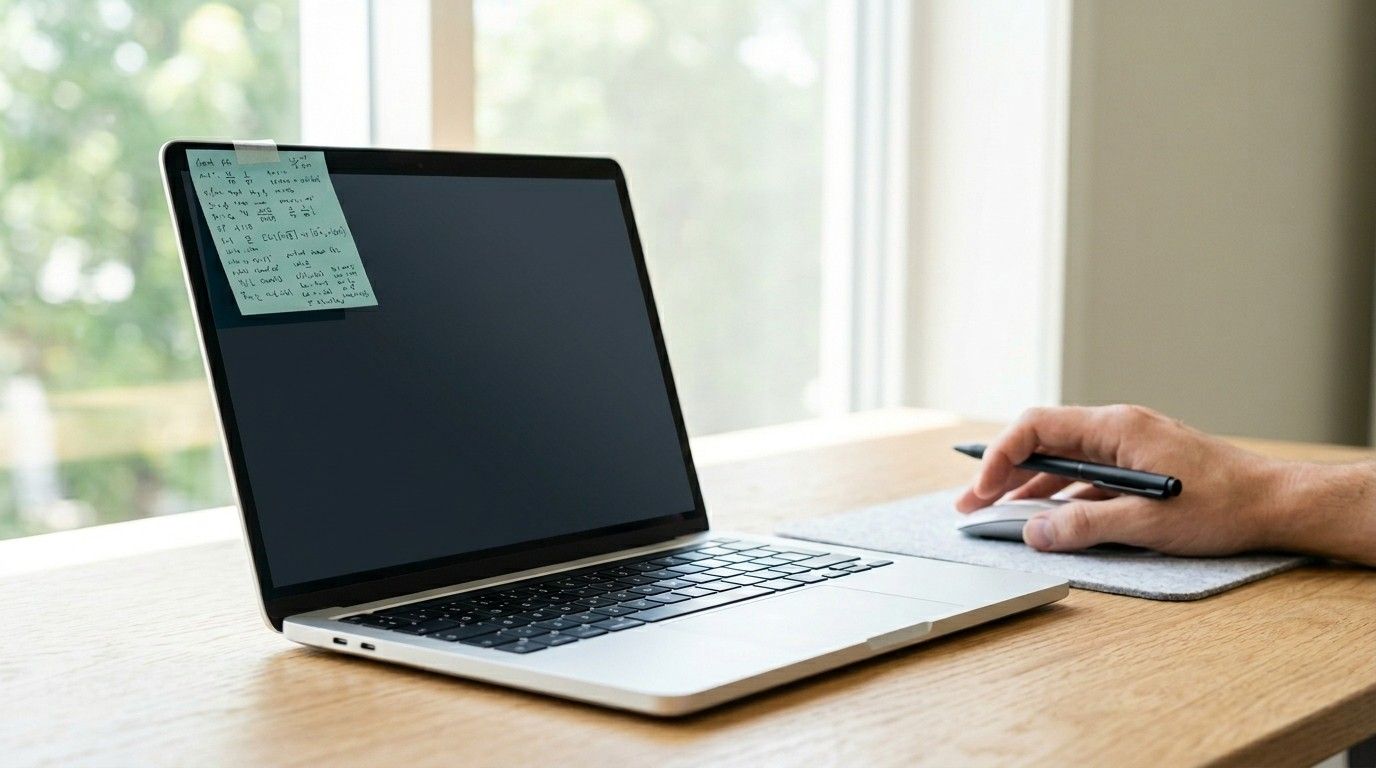
Grab a sticky note. Write the shortcuts by hand. Stick it to your monitor, laptop lid, or wherever you design. This sounds old-school. It works.
Minutes 21–30: Design something using ONLY keyboard shortcuts.
Open a blank Canva design. Add a text box, an image, a shape. Move, group, duplicate, and align—using only your keyboard. No mouse. No trackpad.
It will feel slow. That’s normal.
The best part? After one session, these shortcuts start to stick. After five sessions, they’re faster than clicking ever was. And after two weeks, you won’t even think about them—they’ll just happen.
These are the kinds of canva shortcuts for busy moms (and dads, and anyone designing in stolen pockets of time) that actually move the needle. If you’ve been building your digital product skills from the ground up, posts like how to create your first digital product and using Canva for digital products pair perfectly with everything in this guide.
Momentum isn’t magic—it’s what happens when you stop waiting for the perfect moment and just start.
Ready to Turn Canva Into Your Fastest Design Tool?
You now have 15 canva shortcuts tips for beginners—ranked, explained, and ready to use in your next 30-minute work window.
But shortcuts are just the surface.
The Canva Playbook goes deeper. It covers the full editing workflow—from navigating the workspace and working with text and photos, to the Tips & Tricks section with advanced techniques like creating transparent gradient text effects and using the “Tidy Up” feature to align your designs in seconds. It even includes a breakdown of Free vs. Pro so you know exactly what you need—and what you don’t—before spending a cent.
It’s built for beginners. No design experience needed. And yes—it’s structured so you can make real progress in 30 minutes or less.
The truth is… shortcuts are just the start. Systems are what set you free.
And everything you want—the time back, the products built, the income that doesn’t depend on clocking in—exists on the other side of learning how to work smarter inside the tools you already have.
You don’t need more hours. You need better habits. Start with one shortcut today.